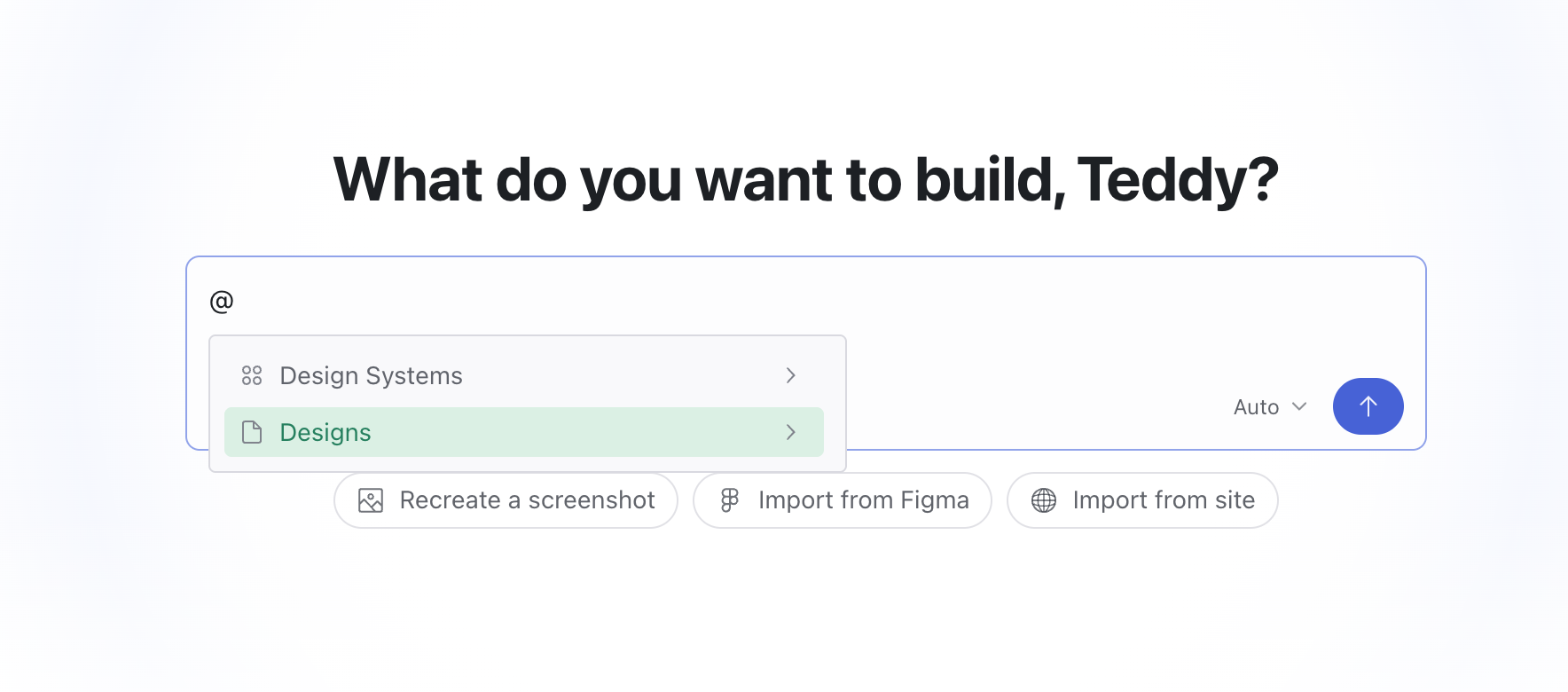
Option 1: Cross-Project Referencing via Magic Patterns MCP

Use the Magic Patterns MCP as its own Connector within Magic Patterns to reference and merge designs from different projects directly in your AI coding tools.
Magic Patterns Connector
This feature is currently in beta.
1

Connect the Magic Patterns MCP as a Connector

First, go to the Connectors page and set up the Magic Patterns MCP as a Connector.
2

Get the Magic Patterns link for your design

Navigate to the design you want to reference and copy its link. The URL will look something like https://www.magicpatterns.com/c/abcd.
3

Prompt by sharing the Magic Patterns link

Now, in your “target” design, simply paste the Magic Patterns link in your prompt with context you want to use the Connector. It should automatically fetch the design context and allow you to reference it.
Example Tool Call
For example:Import specific elements:
Use the Magic Patterns Connector/MCP to extract the pricing table component from https://www.magicpatterns.com/c/123 and add it to my landing page
Or reference multiple designs:
Use the Magic Patterns Connector/MCP to get the navigation bar from https://www.magicpatterns.com/c/456 and the settings panel from https://www.magicpatterns.com/c/design-b, then combine them into a single layout component
Let’s say you have two designs, Design A and Design B. Perhaps they are separate pages and you want to link them together. First, navigate to Design A and get its link from the share button. The URL is something like https://project-design-a.magicpatterns.app Now, in Design B, perhaps you want to make a button that links to Design A. So, you can prompt something like:
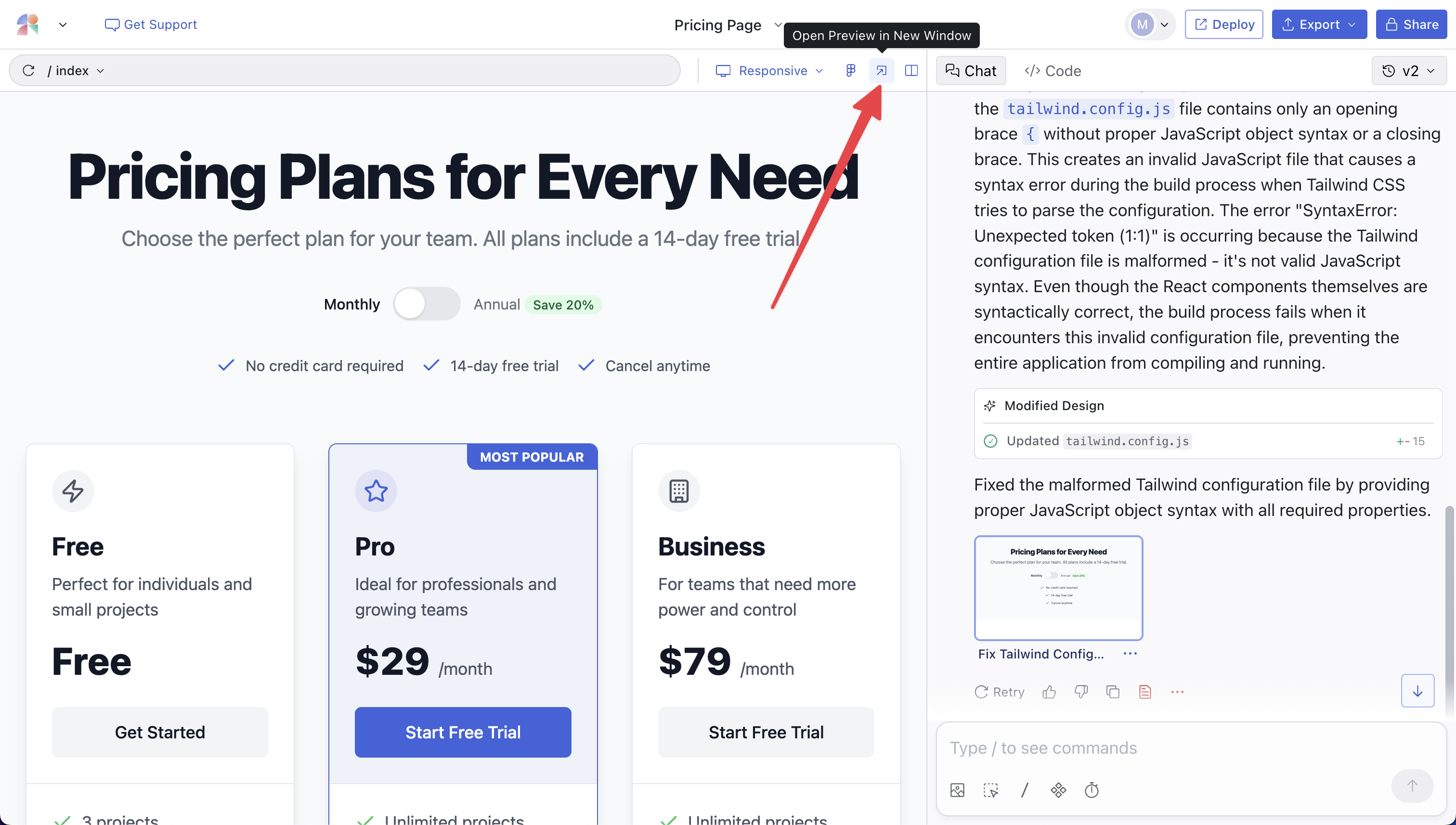
Please make the button link to this URL...
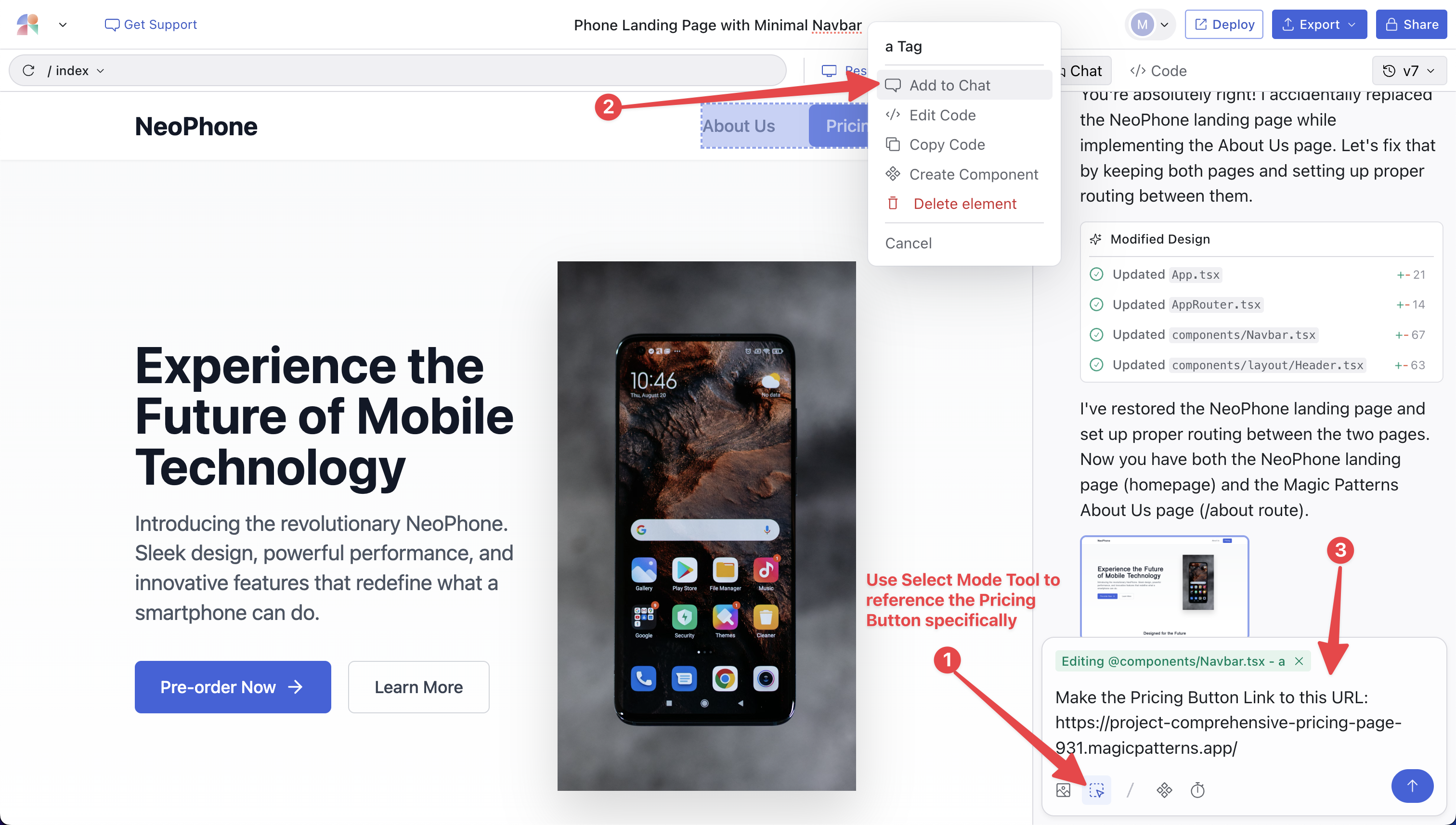
In this example, you’d likely use Select Mode to be specific about the button you want to link to and prompt something like:
Please make the pricing button link to this URL: https://project-design-a.magicpatterns.app
Option 3: Copy Code as Prompt

This method may hit prompt size limits if you’re trying to merge very large designs. But you can always select specific elements using Select Mode to get the code.
Navigate to the design — let’s say Design A — that contains the content you want to merge into another design, Design B. Use the Copy Code as Prompt feature to get the code from Design A. In Design B where you want to add the content, paste the code with a specific instruction like:
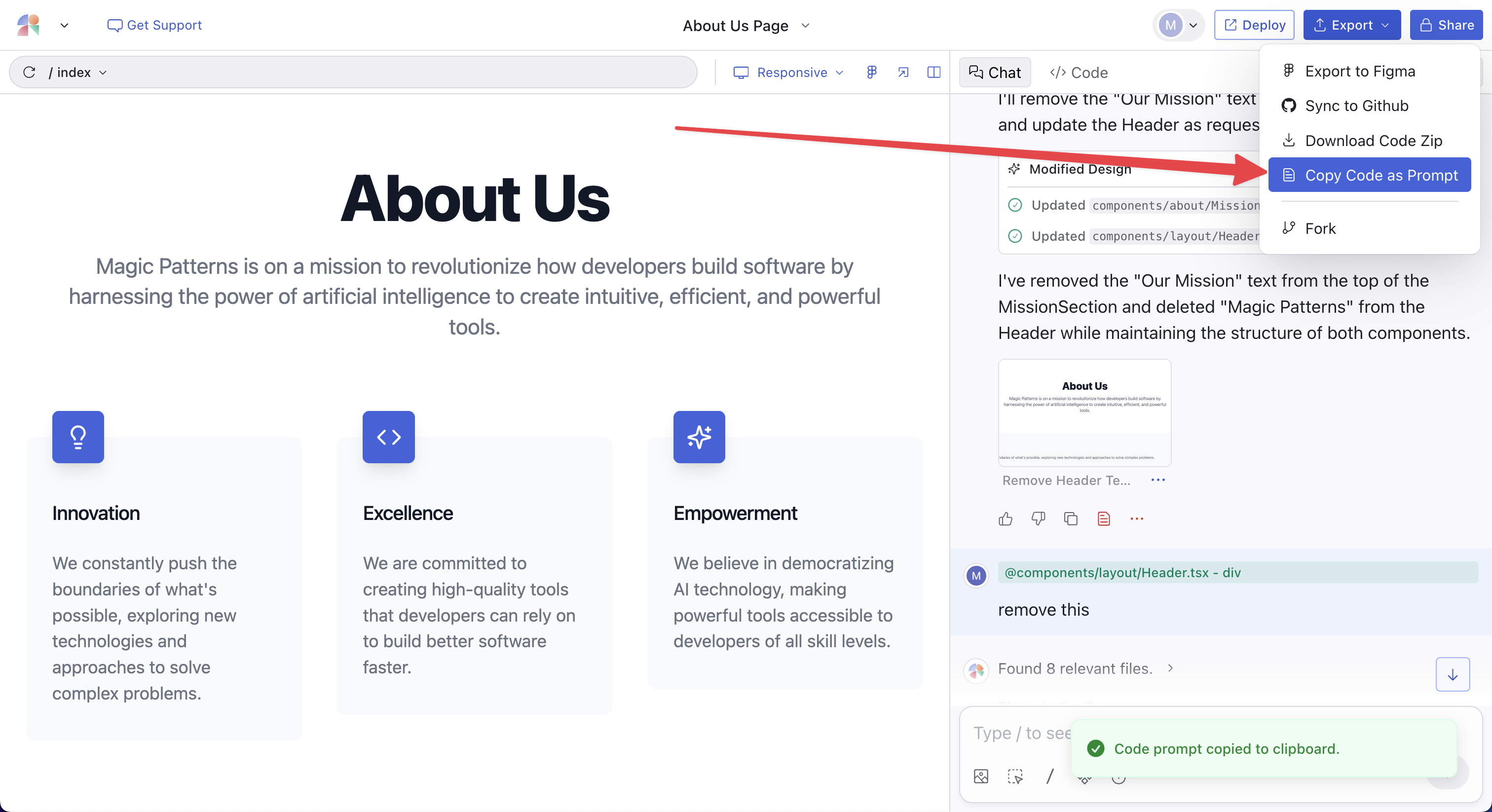
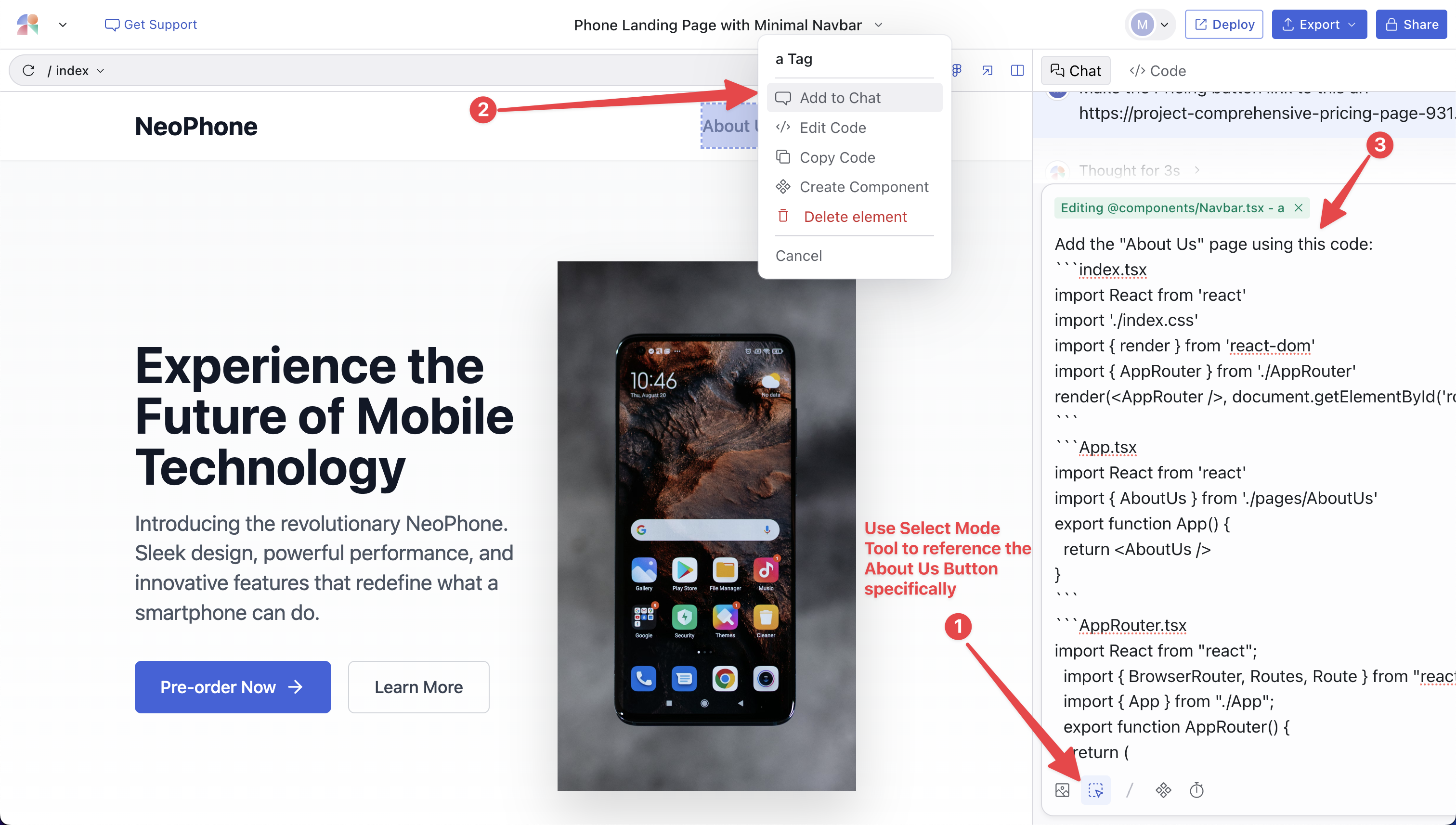
Add an About Us page using this code: [paste the code here]
If you are in a Canvas, see our guide on Linking Screens Together in the Canvas section.